The new sign-in
Signing in to Track of the Day, GS-Route and Track of the Day Mobile is getting simpler: you no longer need to remember any login details, and your existing licence is kept. This page explains step by step what is changing and how to pair your devices.
What is changing
Until now you had to register and activate a licence, and enter a licence key, e-mail address and password in the app. That is no longer necessary.
From now on, everything runs through the TD Cloud and your account in the TD-Portal. You no longer enter a licence key, an e-mail address or a password in the app.
You pair each device with your account once, using a short code. It takes less than a minute.
One licence for all programs (up to 10 devices)
There is now just one licence for the whole TD suite: Track of the Day, GS-Route, Track of the Day for Mac, GS-Route for Mac and Track of the Day Mobile.
With this one licence you can use up to 10 private devices, for example your PC, your laptop, your phone and your tablet.
Existing customers
You already have a licence? Then there is nothing you need to do.
When you start the new version for the first time, the app converts your previous licence key automatically. The remaining term and your Pro access are fully kept. The licence then appears in your TD-Portal account, that is, the account you registered with before.
Pair a device: Track of the Day, GS-Route, TD-Mac and GSR-Mac on Windows, Mac and Linux
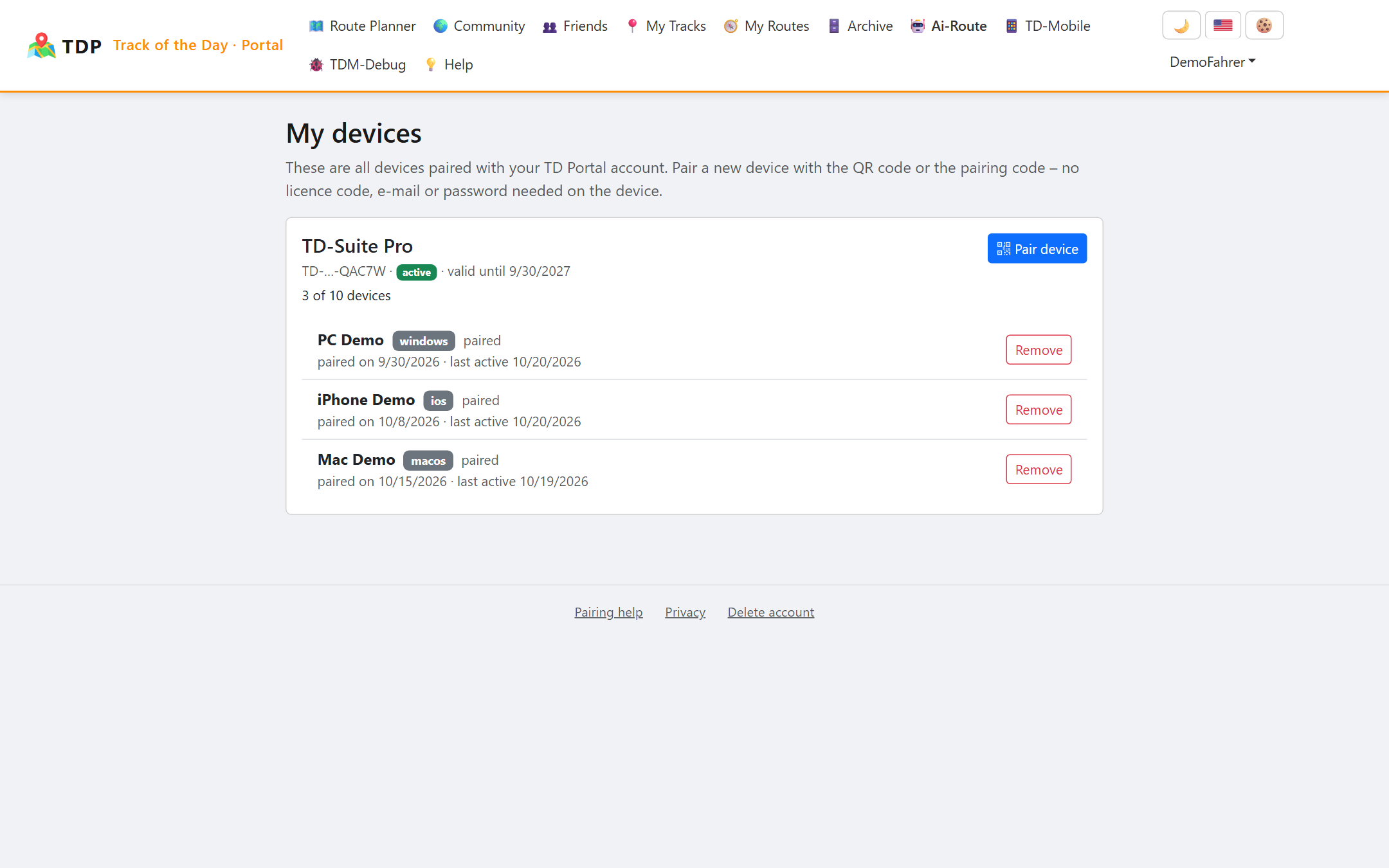
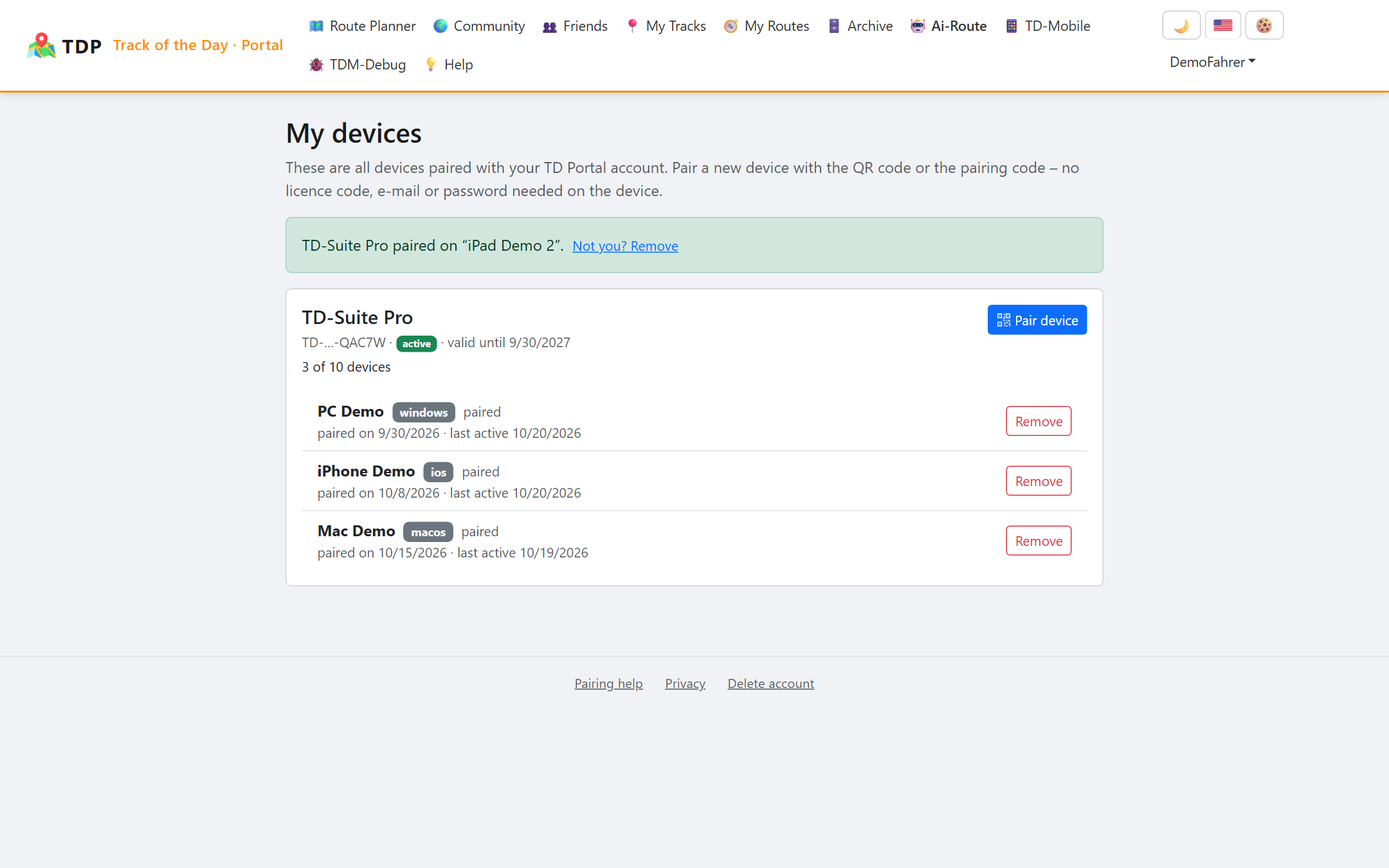
- Open portal.track-of-the-day.com in your browser, sign in with your account and open “My devices”. There you can see your licence and all devices that are already paired. (My devices)
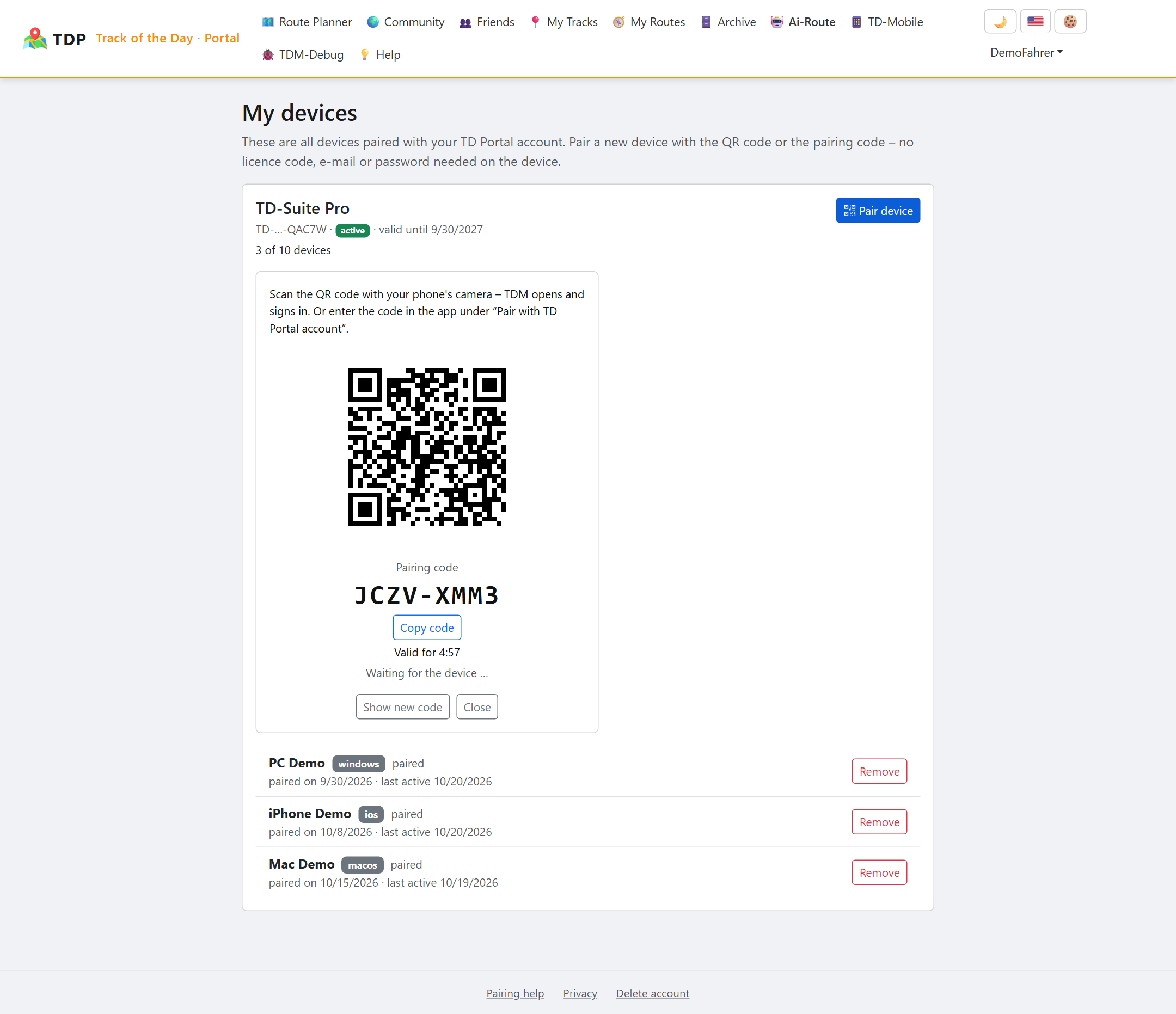
- Click “Pair device”. The portal shows a QR code and, below it, the same code to type in. The code is valid for 5 minutes and can be used only once. If it expires, the portal simply shows a new one – so there is no need to hurry.
On the computer (Windows, Mac, Linux)
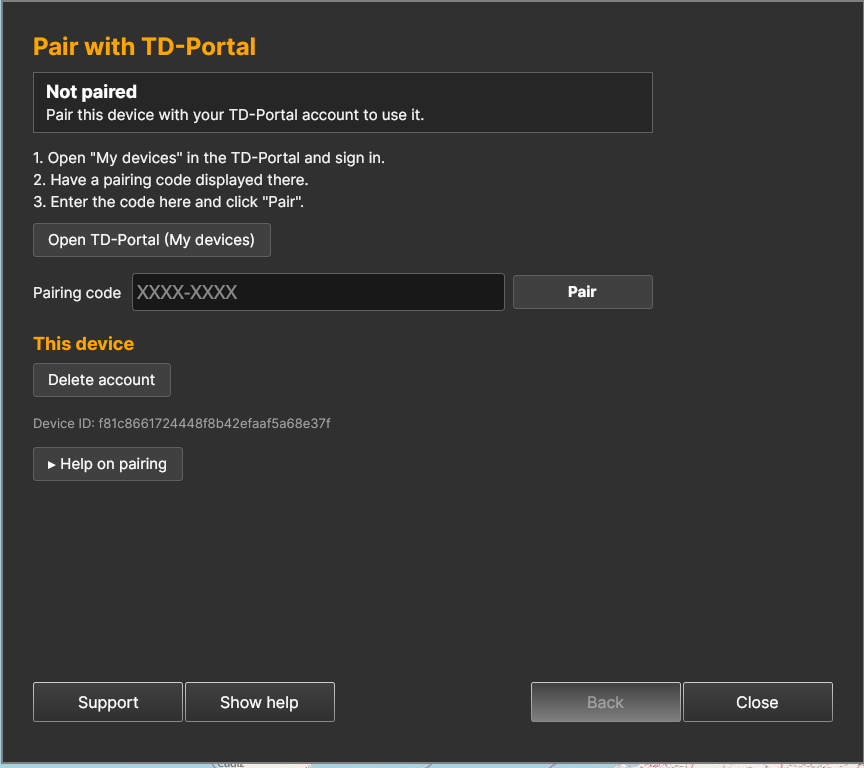
- Open the licence management in Track of the Day or GS-Route. The first page is called “Pair with TD-Portal”.
- Type the code into the “Pairing code” field and click “Pair”. Upper or lower case and the dash do not matter.
- After a few seconds the app shows “Paired” together with the date until which your licence is valid.
Track of the Day Mobile on iOS, Android, Windows and Mac
Scan the QR code
On an iPhone, iPad or Android phone, open the camera and point it at the QR code in the portal. Tap the notification. Track of the Day Mobile opens with the code already filled in. For your safety the app asks once more; confirm with “Pair”.
Type the code
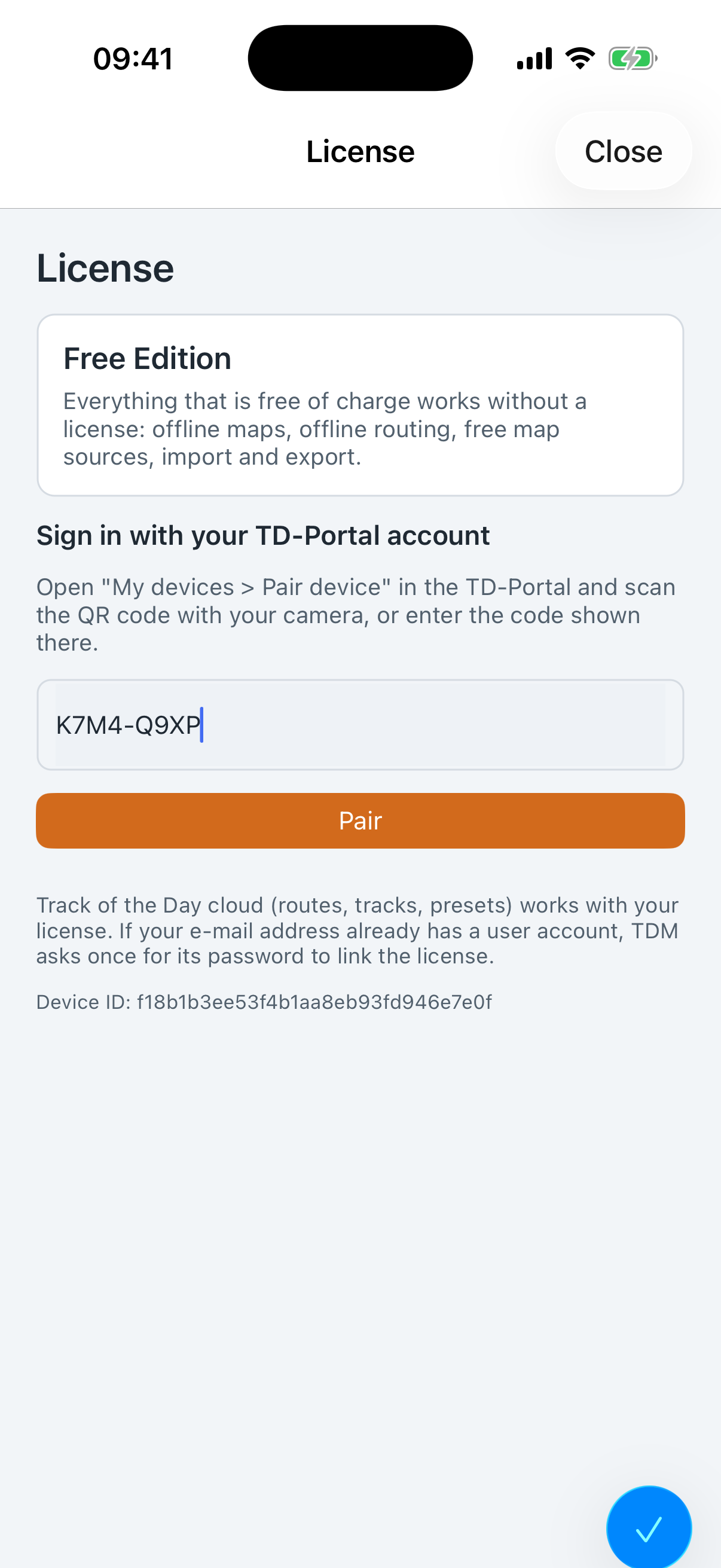
In Track of the Day Mobile open “Settings” → “Login & License” → section “Sign in with your TD-Portal account”, type the code and tap “Pair”. This also works on Windows and on the Mac.
Copy the code
If the portal is open on the same device, tap “Copy code” in the portal and paste the code into the app.
Manage and remove devices
Every new pairing appears immediately in “My devices”, and you also receive an e-mail. That way you always keep track.
An old phone, or a device you do not recognise, can be removed there with “Remove”. This also frees a place for a new device. My devices
Delete account
If you want to give up your account completely, you will find “Delete account” in the portal and in the app. Please note: your account and cloud data are permanently deleted, and any remaining term is lost. The files on your device are kept. Delete account
Redeem a licence code
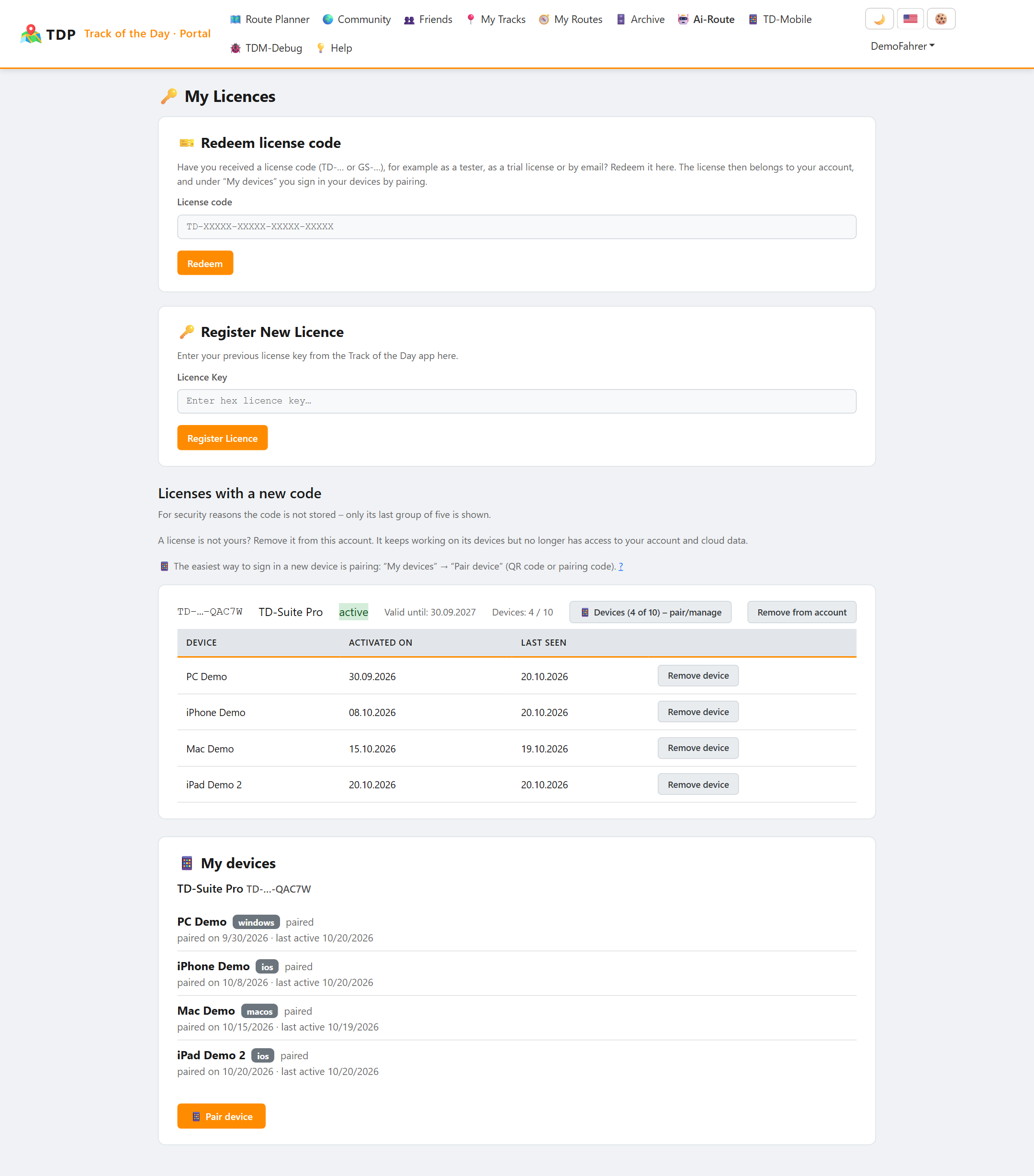
Are you new, or have you received a licence code, for example as a tester? Redeem it in the portal under “My licences” with “Redeem licence code” – or enter it in the “Licence code” field straight away when you register. Redeem licence code
The licence then belongs to your account, and you pair your devices as described above.
Looking ahead
We are working on making it simpler to buy the licence, too. In future there will be a convenient automatic renewal that you can end at any time.